Integrations ★ Shopify
Testimonials on Shopify, in one Custom Liquid section
Shopify takes the tag in a Custom Liquid section — no app to install, no theme code to edit. The thing to check first is not your plan, because every standard plan can do this. It is your theme: Custom Liquid is a section the theme provides, and Shopify's own free themes all ship it.
- Where the tag goes
- A Custom Liquid section — ⊕ Add section in the theme editor, in the template where the testimonials belong — with the tag pasted into its Liquid code field.
- Plan needed
- Every standard Shopify plan. The exceptions are the legacy Starter plan, which cannot customize themes, and vintage themes without JSON templates.
01 Where the tag goes in the Shopify theme editor
No app. The search results for this query are wall-to-wall app listings, so it bears saying plainly: a testimonial widget is one script tag, and Shopify’s theme editor has a section built for exactly this paste — Custom Liquid, whose own setting description reads “Add app snippets or other code to create advanced customizations.”
- From your Shopify admin, go to Online Store → Themes, find the theme, and click Edit theme.
- Pick the template the testimonials belong on from the drop-down at the top — the home page is selected by default, and a section added there appears only there.
- In the sidebar, click ⊕ Add section, search for Custom Liquid, and select it.
- Paste the script tag into the section’s Liquid code field.
- Drag the section’s handle to position it, then click Save.
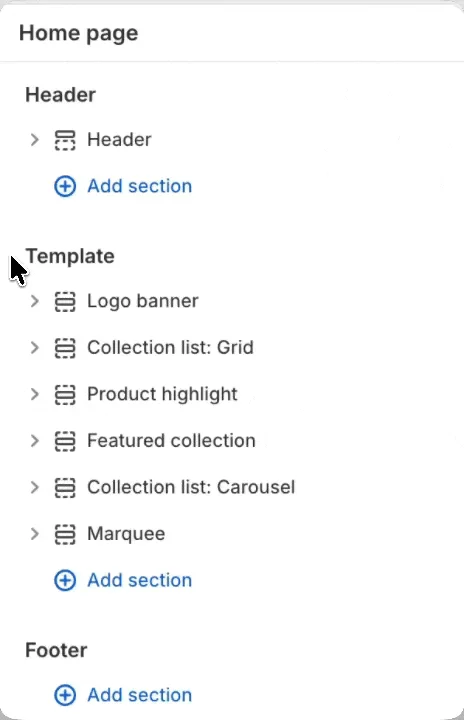
Those three sidebar groups are also the scope control. Shopify’s docs spell it out: “if you add a custom Liquid block to the header, then that custom Liquid displays on all your product pages, home page, and any other pages.” So: Template puts the testimonials on that template’s pages, Header or Footer puts them on every page of the store.
02 What gates it — the theme, not the plan
No standard plan gates the theme editor. Shopify’s documentation for sections, the theme editor and Custom Liquid carries no plan requirement — Basic, Grow, Advanced and Plus all customize themes the same way. The one documented exception is the legacy Starter plan: “Other themes and customization options aren’t available on the Starter plan”, and it is no longer sold to new stores.
The real gate is the theme. Shopify hedges its own docs with “If your theme offers a Custom Liquid section” — it is a section themes provide, not a platform guarantee. Every free theme Shopify ships (the Dawn family) includes it. A third-party theme may not, and a vintage theme — one without JSON templates — cannot add sections beyond the home page, or at all. The tell is the sidebar: if there is no Add section button, you are on a vintage theme.
On a vintage theme the documented fallback is Edit code (the … menu on the theme), pasting the tag into the template where the section belongs — knowing a theme update can discard code edits, which is why the editor route is the default.
Sources
- Shopify — Sections and blocks
- Shopify — Customizing sections in the theme editor
- Shopify — Extend your theme with apps (Custom Liquid section)
- shopify.dev — Input settings (the liquid setting type)
- Shopify — Shopify Starter plan
Plan names and menu labels are the platform’s to change. If what you see differs from what is written here, the linked page is the authority — and tell us so this page gets fixed.
03 When the widget doesn’t show up
- The widget shows on the storefront but not in the theme editor’s preview.
- A documented quirk, backwards from what you’d fear: when the editor re-renders a section it patches the DOM without reloading, and “any associated JavaScript that runs when the page loads won’t run again”. The preview goes stale; the real page is fine. Judge from the storefront URL, not the editor.
- Nothing shows on the storefront either.
- Three checks, in order. Did you Save? The auto-updating preview makes an unsaved change look done. Is the theme you edited the published one? A draft theme’s changes never reach customers until published. And is the section on the template you are actually looking at — a home-page section does not appear on a product page.
- The section exists but is greyed out or absent on the live page.
- Sections can be hidden with the eye button in the editor without being removed — un-hide it. If the section was never findable at all, the theme does not offer Custom Liquid; see the theme gate above.
- Your theme’s fonts and colours are not applying to the widget.
- By design, on every platform. The widget renders into an open shadow root with its own reset, so theme CSS cannot reach in and widget CSS cannot leak out. Change its look in the Testymo widget editor; the embed picks it up on the next page load with no theme edit.
04 What the one tag actually does
The line you paste is a plain external script. There is no plugin, no app to install, no account to connect on the Shopify side, and nothing to configure in the editor afterwards. Testymo generates the tag when you create a widget; the address in it is your widget’s own, and this is the live demo one:
<script src="https://testymo.com/w/demo.js" async></script>The server builds that script per request: the rendering code and your approved testimonials arrive together in one response, so the page makes one request and no follow-up fetches. The demo tag printed above weighs 16.7 KB of JavaScript, about 6 KB over the wire. That figure covers the demo widget's eight quotes. The testimonials ride inside the script rather than arriving in a second request, so a wall carrying thirty of them weighs thirty quotes' worth of text — measure the embed you paste in, not this one. The page-speed guide has the method behind that number, and the case for measuring whatever you embed rather than trusting the category.
It renders into an open shadow root at the exact spot the tag sits, which makes the styling isolation work in both directions: your Shopify theme cannot restyle the widget by accident, and the widget’s CSS cannot leak into your page. It sets no cookies, calls no third party, and reads nothing about your visitors. When you approve a new testimonial, it appears on the next page load — you never touch the site again.
05 The widget, running on this page
Everything below this line was drawn by that one script tag — the same file, on the same terms, that you would paste into Shopify. Eight approved testimonials in the wall design, rendered as a free plan renders them, footer link and all.
06 Where to go next
An embed script is one of three ways to put testimonials on a site, and it is not always the right one — a handful of quotes that will not change for a year are better hand-coded. The full guide to adding testimonials to a website prices all three routes: setup, upkeep, and page weight. Once you know the quotes are arriving, the layout patterns guide covers which shape to show them in, and getting permission first covers the part most sites skip.
The same tag, in another editor
- WordPress Custom HTML block
- Webflow Code Embed element
- Wix Embed HTML element
- Squarespace Code block
- Framer Embed component
- Ghost HTML card
- Carrd Embed element
- Notion Via Super, or an embed block
- Bubble HTML element
- Kajabi Custom Code block
- Teachable Custom HTML block
- Podia Site-wide code field, or its native section
- Skool None — images and links only